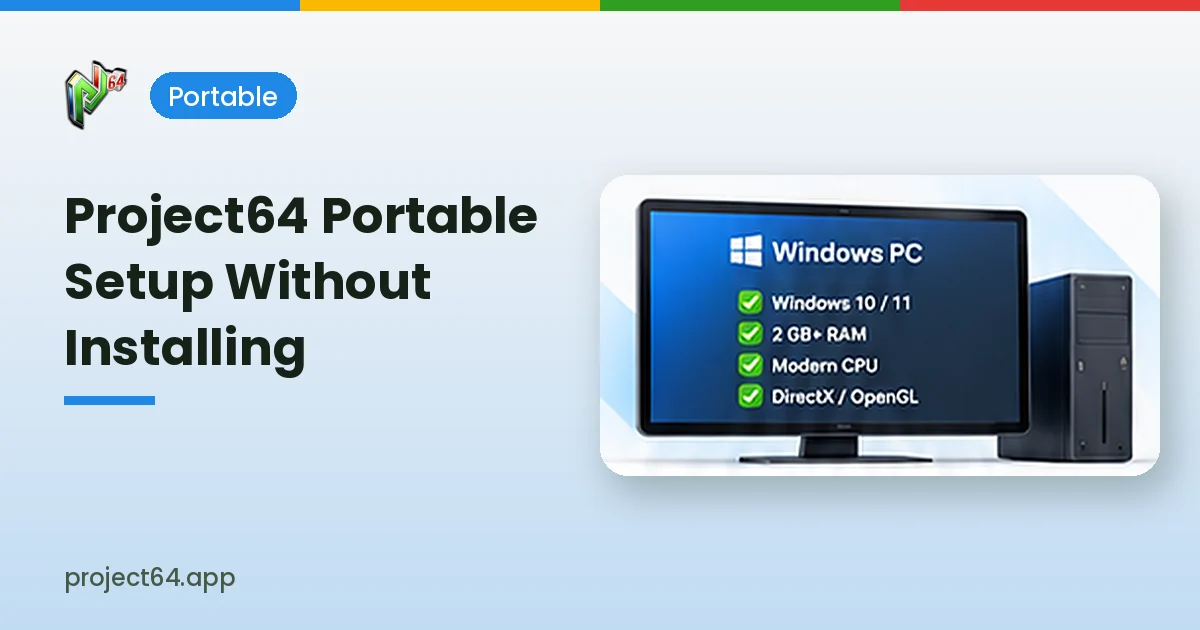
Project64 portable setups let you run the Nintendo 64 emulator from a folder rather than through a traditional installer. This approach suits people who move between computers, keep their games on an external drive or simply prefer software that stays self-contained without spreading files across the system.
What a Portable Setup Means
A portable setup keeps the emulator, its plugins, configuration files and saves inside one folder. Instead of running an installer, you extract an archive to a location of your choice and start the program directly from that folder whenever you want to play.
Availability of archive-based builds depends on the release you choose. Project64 Legacy, for example, describes itself as a portable emulator that only needs extracting, while other releases may be offered mainly as installers.
| Approach | How It Works | Best For |
|---|---|---|
| Installer | Copies files to Program Files and creates shortcuts | Single-PC everyday use |
| Portable archive | Extract to any folder and run directly | USB drives and multiple PCs |
| Self-built from source | Compile and copy the output folder | Developers and testers |
Preparing a Portable Folder
A clear folder structure makes a portable setup easy to manage. Choose a location with write permissions, such as a folder on your user drive or a USB stick, because the emulator needs to save configuration changes and game progress inside its own directory.
- Create a main folder named Project64 on your chosen drive.
- Extract the emulator archive into that folder using a tool such as 7-Zip.
- Add a separate Games folder for your own legally obtained game files.
- Keep the Save folder inside the emulator directory so progress travels with it.
Avoid Protected System Folders
Placing a portable emulator inside Program Files can cause problems, because Windows restricts write access there. Settings may fail to save, and save states can disappear, leading to confusing behaviour that looks like a bug in the emulator itself.
Running Project64 From a USB Drive
A fast USB 3 drive or external SSD works well for portable play. Loading times depend mostly on the drive speed and the size of the game file, while actual emulation performance depends on the computer’s processor and graphics hardware.
Safely ejecting the drive after each session protects your save files from corruption. Closing the emulator first ensures that settings and in-game saves are written completely before the drive is removed.
| Storage Type | Loading Speed | Notes |
|---|---|---|
| Internal SSD | Fast | Best overall experience |
| USB 3 flash drive | Good | Convenient for moving between PCs |
| Older USB 2 drive | Slower | Works, but loading takes longer |
| Network folder | Varies | May cause delays or write issues |
Keeping Settings Consistent Across PCs
Controller mappings and graphics settings are stored in configuration files within the emulator folder. When you move to another computer, those settings come along, although you may need to reselect your gamepad if Windows assigns it a different device order.
Different monitors and graphics hardware can also require small adjustments. A resolution that suits a large desktop display may be too demanding for a small laptop with integrated graphics.
- Recheck the input device after connecting to a new PC.
- Adjust resolution to match the current monitor and hardware.
- Update graphics drivers on each computer you use regularly.
Backing Up a Portable Installation
A portable setup is simple to back up because everything lives in one place. Copy the whole folder to cloud storage or a second drive at regular intervals, especially before trying new plugins, development builds or major setting changes.
Running Multiple Versions Side by Side
Portable folders make it simple to keep more than one version of the emulator. You might keep a stable release for everyday play and a separate folder for testing a development build or a Legacy release, without either one changing the other’s settings.
Clear folder names prevent confusion. Including the version or purpose in each folder name makes it obvious which copy you are opening, especially when several shortcuts sit on the desktop.
| Folder Name | Contents |
|---|---|
| Project64-Stable | Everyday setup with your saves |
| Project64-Test | Development build for experiments |
| Project64-Legacy | Portable Legacy release |
Creating Handy Shortcuts
Desktop shortcuts to the emulator’s executable speed up launching a portable setup on your main computer. On a USB drive, a shortcut may break when the drive letter changes, so opening the program directly from its folder is often more reliable.
- Right-click the executable and create a desktop shortcut on your main PC.
- Pin the program to the taskbar for one-click access.
- Open the executable directly when using a USB drive on another PC.
Security for Portable Copies
Portable copies are only as trustworthy as their source. Download archives from the official website or the recognised repository, scan them before extracting and avoid copying emulator folders shared by unknown people.
Moving From an Installed Copy
Switching from an installed copy to a portable folder is mainly about saves. Copy the Save folder from the installed emulator into the new portable directory, then check that your games load their progress correctly before removing the old installation.
Controller mappings may need to be recreated, because the portable copy starts with its own configuration files.
Cleaning Up an Old Portable Copy
Removing a portable copy is as simple as deleting its folder, since no installer entries are created. Copy any saves you want to keep first, and check that no shortcuts still point to the deleted location.
Frequently Asked Questions
Not always. Archive-based builds can run from an extracted folder, while installer releases copy files to your system.
Yes. When the emulator runs from the USB folder, saves and settings are stored inside that folder.
The emulator may be located in a protected folder such as Program Files. Move it to a location with write access.
Conclusion
Project64 portable setups keep the emulator, plugins, settings and saves together in a single folder that can move between computers. Extract builds to a writable location, organise your own game files separately and back up the folder regularly. Visit our download section or read the Project64 Legacy guide for archive-based options.