Project64 graphics plugins control how Nintendo 64 games are drawn on your screen. Because the emulator uses a plugin-based design, you can switch video components to improve compatibility, sharpen visuals or address problems such as flickering, missing textures and black screens in particular games.
How the Plugin System Works
Project64 separates several emulation tasks into plugins: video, audio, input and RSP processing. The video plugin translates N64 graphics commands into instructions your graphics card understands, which is why changing it can have such a visible effect on a game.
Different plugins balance accuracy, speed and compatibility in different ways. A plugin that suits one game perfectly may show glitches in another, so testing alternatives is a normal part of tuning the emulator.
| Plugin Type | Role |
|---|---|
| Video | Draws graphics and handles resolution and effects |
| Audio | Produces sound and music |
| Input | Reads keyboard and controller input |
| RSP | Processes graphics and audio tasks from the N64 co-processor |
GLideN64 Overview
GLideN64 is one of the most commonly used Nintendo 64 video plugins and appears in many Project64 setups. It supports higher internal resolutions and a range of enhancements, and its development focuses on accurate reproduction of N64 graphical effects.
- Internal resolution: render games above the original N64 resolution.
- Anti-aliasing: smooth jagged edges where hardware allows.
- Texture enhancement: optional filtering and texture pack support.
- Frame buffer emulation: needed for effects used by some games.
Choosing the Right Resolution
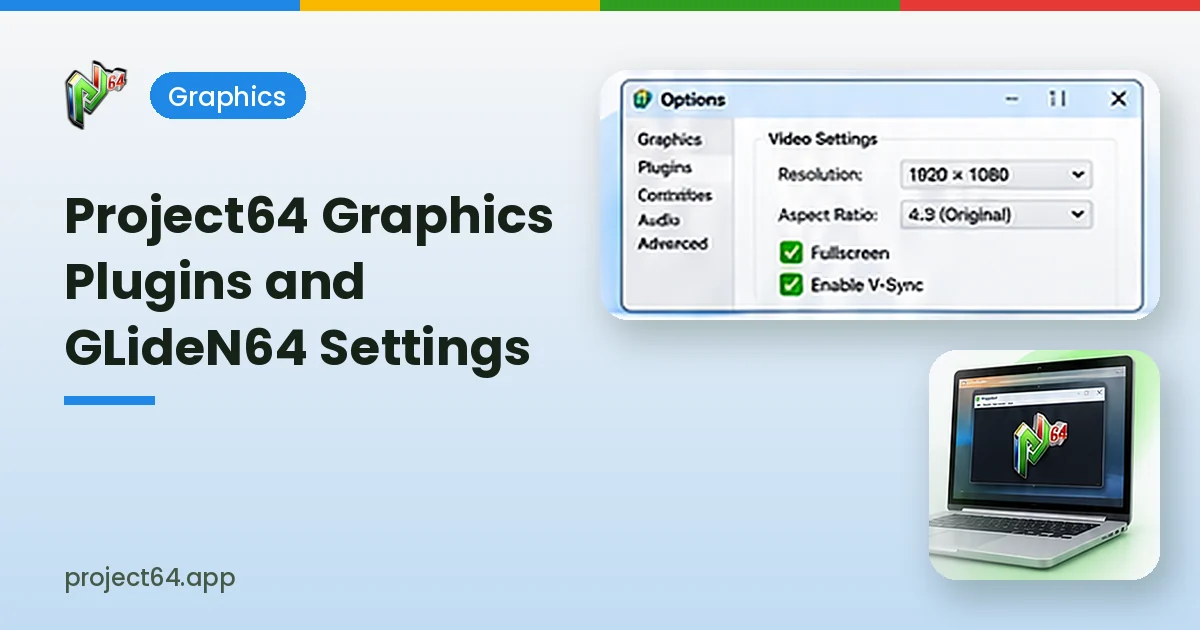
Higher resolutions make polygons sharper, but they do not automatically improve original game textures, which were designed for low resolution displays. A resolution matching your monitor usually gives the cleanest image, while lower settings help on less powerful computers.
| Hardware | Suggested Starting Point |
|---|---|
| Older integrated graphics | Native or 2x internal resolution |
| Modern integrated graphics | Up to 1080p output |
| Dedicated graphics card | Monitor resolution or higher |
Keeping the Original Aspect Ratio
Nintendo 64 games were designed for 4:3 televisions. Stretching them to widescreen distorts characters and menus, so keeping the original aspect ratio with side borders often looks more natural, unless a specific widescreen option is supported for that game.
Fullscreen and V-Sync Options
Fullscreen mode removes desktop distractions and can feel closer to a console experience. Choose a fullscreen resolution that matches your display to avoid blurry scaling, and enable V-Sync if you notice screen tearing during fast movement.
Some displays handle mode switching slowly. Borderless or windowed fullscreen options, where available, can make switching between the emulator and other programs quicker.
Fixing Common Visual Problems
Visual problems usually trace back to the video plugin, graphics drivers or a game-specific setting. Testing one change at a time makes it easier to see what actually solves the issue.
| Problem | Suggested Fix |
|---|---|
| Black screen | Switch video plugin and update graphics drivers |
| Missing textures | Enable frame buffer emulation or test another plugin |
| Flickering | Toggle V-Sync or try a different plugin |
| Slow performance | Lower internal resolution and disable heavy enhancements |
| Stretched image | Restore the 4:3 aspect ratio |
Keeping Graphics Drivers Updated
Video plugins rely on OpenGL, Direct3D or Vulkan support from your graphics driver. Outdated drivers can cause crashes or visual errors that look like emulator bugs, so installing the latest driver from your GPU manufacturer is a simple first step.
Changing the Video Plugin
The plugin selection screen lists the available video, audio, input and RSP components. Switching the video plugin usually requires restarting the game, and some changes only take effect after the emulator itself is closed and opened again.
- Open the settings and find the plugin selection page.
- Choose a different video plugin from the list.
- Restart the game, or the emulator if prompted.
- Compare the results before changing other options.
Texture Packs and Enhancements
GLideN64 can load high-resolution texture packs created by the community for some games. These packs replace original textures with more detailed versions, and they should be placed in the folder expected by the plugin, as described in its documentation.
Enhancements increase the work your graphics hardware has to do. If performance drops after enabling a texture pack or anti-aliasing, reduce resolution or disable the most demanding options.
| Enhancement | Performance Impact |
|---|---|
| Higher internal resolution | Moderate to high |
| Anti-aliasing | Moderate |
| Texture packs | Depends on pack size |
| Texture filtering | Low |
Graphics Settings for Laptops
Laptops with both integrated and dedicated graphics may run the emulator on the weaker chip by default. Assigning Project64 to the high-performance GPU in Windows graphics settings can noticeably improve frame rates in demanding games.
Plugging in the charger also matters, since many laptops reduce graphics performance on battery power to extend battery life.
Per-Game Graphics Adjustments
Some titles look best with settings that differ from your global defaults. Project64 stores game-specific settings, so you can adjust options for a single problem game without changing how the rest of your library looks.
Keep a short note of which plugin and options worked for each tricky game. That record saves time after reinstalling or moving to a new computer.
- Change one setting at a time and test.
- Record the working plugin for each problem game.
- Reset to defaults if a game becomes unstable.
Balancing Quality and Speed
Smooth, consistent frame rates matter more than maximum sharpness in most N64 games. Start with modest settings, raise them gradually and stop when you notice stutter, so the game stays responsive while looking as clean as your hardware allows.
Frequently Asked Questions
No single plugin suits every game. GLideN64 is a popular choice, but testing alternatives helps with specific titles.
Original N64 textures were made at low resolution. Higher internal resolution sharpens geometry, not texture detail.
Project64 stores game-specific settings, so you can adjust options for individual titles.
Conclusion
Project64 graphics plugins give you real control over how N64 games look and perform. Start with a commonly used plugin such as GLideN64, match resolution to your hardware, keep the 4:3 aspect ratio and test alternatives for problem games. Read our controller setup guide or visit the download section.